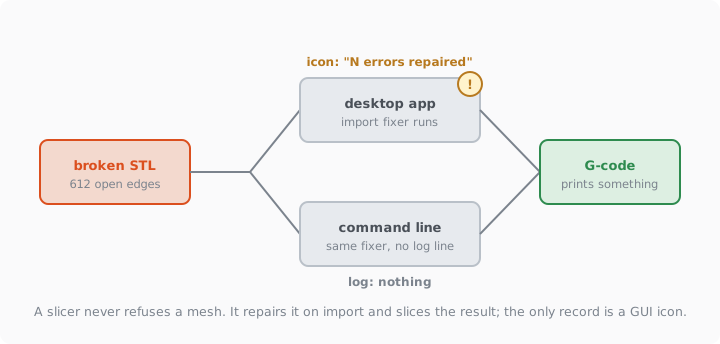
We took an STL we knew was broken, hundreds of open edges and a handful of non-manifold ones, and fed it to Bambu Studio's command-line slicer with a stock X1C profile. It produced G-code. The log contained no warning, no error, not one line about the mesh. The same file opened in the desktop app shows a small triangle icon on the object, and if you hover it, a sentence.
Short version: slicers do not reject broken meshes, they repair them on import and slice whatever comes out. In the GUI you get an icon; in batch or farm workflows you get nothing. The repair is a set of executive decisions about your geometry, and the only way to know what it decided is to look at the layer preview, not the log.
What the slicer actually does on import
Bambu Studio, like PrusaSlicer it descends from, runs an import-time fixer inherited from the old admesh toolkit. It records what it did in a small structure with five counters: edges fixed (vertices that were pulled together), degenerate facets removed, facets removed, facets reversed, and backwards edges (TriangleMesh.hpp). If any of those is non-zero, the object is marked "repaired", and the icon text reads "N errors repaired".
The icon itself appears on one condition, straight from the source: the mesh is non-manifold, or has open edges, or was repaired (GUI_ObjectList.cpp). That third clause is the interesting one. A model can be perfectly closed after import and still carry the icon, because the slicer had to stitch two vertices to get it there. What each warning string means, and how to clear it, is in every Bambu Studio mesh warning explained →.
Why "sliced fine" and "printed right" are different sentences
The slicer decides, for every point of every layer, whether to put plastic there. It answers with a parity rule: shoot a ray from the point outward, count how many times it crosses the surface, odd means inside. A clean closed mesh gives one consistent answer. A mesh with a self-intersection, a double wall, or a leftover shell inside the body gives a region where the count is wrong, and different slicers resolve the contradiction differently.
So a damaged model does not fail. It prints with a wall missing on one side, a hole shifted, a cavity where the body should be solid, or an extra internal shell that turns a lightweight part into a filament sponge. Nothing in the G-code says so. The repair algorithms and the exact step where they start deleting geometry are laid out in what automatic mesh repair actually does →.
The file is not what you saw on screen
Here is a failure we had to learn the hard way. STL stores every coordinate as a 32-bit float, about seven significant digits (STL format). Modeling tools and repair scripts work in 64-bit. Two vertices that are distinct in memory, say 12.4000001 and 12.4000002, become the same number when written to disk, and the triangle between them collapses to zero area. You checked the model, it was clean, you exported it, and the file on disk has degenerate faces that did not exist a second ago. The slicer's import fixer removes them and shows you "3 errors repaired" on a file you just verified.
The rule we run by now: validate the bytes, not the memory. Write the file, read it back, count again. Our pipeline does exactly that, and refuses to hand out any file where the reread counters are not all zero (repair a file →). If you script your own exports, do the reread; it costs a second.
How to see what the slicer changed
Four checks, in the order they pay off.
| Check | Where | What it catches |
|---|---|---|
| The icon and its text | Object list, hover the triangle | That a repair happened at all, and its rough size |
| Layer preview, walls only | Slice, scroll top to bottom with Line Type set to show perimeters | Missing walls, unexpected internal shells, a cavity |
| Volume before and after | Object info panel, or your modeling tool | A large drop means geometry was discarded |
| Slice with a second slicer | Orca or PrusaSlicer on the same file | Where the two disagree is where the mesh is ambiguous |
If the icon says a dozen errors were repaired on a decorative print, it is fine. If it says hundreds, or the layer preview shows anything you did not design, fix the mesh before printing rather than trusting the fixer. The manual route, tool by tool, is in the free repair tools comparison →; the underlying disease for generated models is in why AI models fail to print →.