You loaded a model into Bambu Studio and got the yellow triangle: "The model has N non-manifold edges." Sometimes N is 6. Sometimes it's 11,376. The Slice button still works, so — is this a real problem, or slicer pedantry?
Short answer: it's real, it's fixable in minutes for most models, and one of the popular fixes can quietly make your model worse. Here's the whole picture.
What "non-manifold" actually means
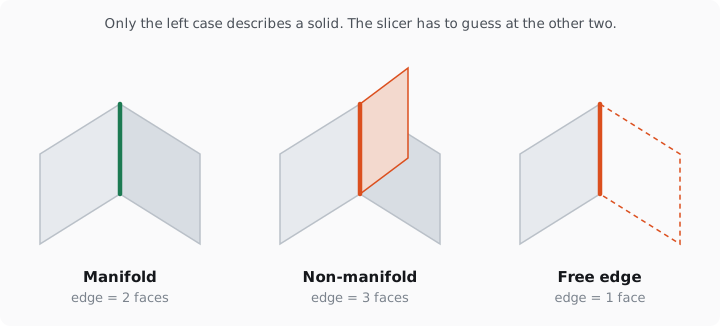
A printable mesh must describe an unambiguous solid: every edge shared by exactly two faces, a clean inside and outside, everywhere. A non-manifold edge breaks that rule — it's shared by three or more faces (a wall sticking out of a surface like a fin), or by just one (a dangling face with a free edge).
Why the printer cares: Bambu Studio doesn't print surfaces, it computes volume — walls, infill, top and bottom shells — and volume only exists if the mesh cleanly separates inside from outside. At every non-manifold edge, that separation is ambiguous, so the slicer guesses. With 6 bad edges the guess is usually right. With 11,000 it's structurally random: missing walls, phantom infill chambers, layers that don't bond.
When you can ignore it — the honest rule
You can slice-and-hope when all three are true: the count is small (tens, not thousands), the model is decorative (nothing load-bearing, nothing that must fit), and you've scrolled the slice preview layer by layer and the walls look continuous. For anything functional — a bracket, a mount, a part that mates with another part — fix it. The slicer's guess can move a wall exactly where the force goes.
Where these errors come from
Three usual suspects. Downloaded meshes (Thingiverse and Printables classics that were sculpted, not solid-modeled). CAD exports with touching-but-not-joined bodies (DesignSpark, SketchUp and friends are famous for this). And the biggest source in 2026: AI-generated models — image-to-3D generators produce non-manifold geometry as a matter of course, for reasons we broke down in our guide to why AI models fail to print →.
Fix 1: Bambu Studio's built-in repair (fastest, Windows only)
Right-click the object → Fix model. Bambu Studio hands the mesh to Microsoft's repair backend and reimports the result.
Works well: small-to-moderate error counts, closed shapes with local defects. Two caveats. First, Bambu's documentation states plainly that the feature is supported on Windows only — on macOS the menu item won't help you, and the request to bring it to Mac is still open on GitHub. Second, on heavily broken meshes the repair can be too aggressive — see "when repair makes it worse" below.
Fix 2: Windows 3D Builder (the free workhorse)
Microsoft's discontinued-but-downloadable 3D Builder opens your STL, detects the errors, and offers one-click repair — a different algorithm than Bambu's, and often more conservative. When Fix 1 mangles a model, Fix 2 frequently doesn't. Import the repaired STL back into Bambu Studio and re-check the count.
Fix 3: Blender + 3D-Print Toolbox (full control)
Enable the bundled 3D-Print Toolbox add-on → select the mesh → Check All to see every defect highlighted → Make Manifold to repair. This is the only route that shows you what it changed. Pair with Recalculate Normals (Shift+N) — inverted faces often travel together with non-manifold edges. Learning curve: an evening. Payoff: you'll never be helpless against a mesh again.
Fix 4: Meshmixer's Inspector (best for holes)
Autodesk Meshmixer (abandoned, still free) → Analysis → Inspector → auto-repair pins. Strongest when the non-manifold count comes from open boundaries and small holes rather than internal junk geometry.
Fix 5: Online repair tools
Several web services repair STLs in the browser (which ones still work in 2026 →). Fine for a quick one-off; mind the file-size limits and the fact that your model is uploaded to someone else's server — relevant if the part is commercial.
Fix 6: Fix the source instead of the symptom
If the model came out of an AI generator, repairing one export is treating a symptom — the next generation will ship broken again. Two better options: regenerate with better input (see photo technique that produces cleaner geometry →), or run generation through a pipeline that repairs and verifies before export. That second one is what we built: PHORM's models arrive in Bambu Studio with zero warnings — repair, wall-thickness and manifold checks run automatically, and a model that fails the printability verdict doesn't count against you. 2 free models to start, no card → For repairing files you already have, there's our STL repair →.
When the repair makes it worse
The full mechanics of what repair engines do inside is its own article →; here is the short version. The failure mode nobody warns you about: auto-repair on a badly broken mesh can remove geometry — you fix 1,328 non-manifold edges and lose two walls. The mechanism is simple and worth understanding, because it tells you when to expect it: repair algorithms resolve ambiguity by discarding what they cannot classify as inside or outside. The more ambiguous your mesh, the more there is to discard.
Protect yourself in 30 seconds: after any auto-fix, (1) re-run slice, (2) scroll the preview top to bottom watching perimeters, (3) compare object volume before and after if your slicer shows it — a large drop means the repair ate something. If it did: try the other repair engine (Fix 2 instead of Fix 1), or go manual with Fix 3.
Prevention checklist
Before slicing anything downloaded or generated: check the error count on import · known-dimension scale check with calipers · scroll the slice preview (30 seconds that save an hour of printing) · for functional parts, never ship a slice with a non-zero manifold warning.